Showing posts with label how to. Show all posts

How to Remove Last Name On Facebook

Posted by Technology Cracks
Facebook is currently no.1 social networking site and also registered more than 1.1 billion accounts till now. FB allow us connect people all around the world and to find new friends and we can share ideas, news etc. let's come to our topic.

FB don't allow users to hide or remove last name, but for Indonesia people, they can remove their last name. so today we use Indonesia proxy to remove our FB last name.


How to Hide or Remove last name on Facebook

First of you need Mozilla Firefox browser, if you dont have Download it from here

  • Open Mozilla Browser, then click on Firefox button placed on top of left side, now navigate to 
               Options > Options > Advanced > Network > Settings 
  • After opening settings, A new window will appear named Connection Settings 
  • Now you need to add Indonesian proxy address
                   To find Indonesian proxies go to :  proxynova.com/proxy-server-list/country-id/ 
      
Note : Copy Proxy Ip and Proxy port in above website.


  • Now click on Manual proxy configuration and enter Indonesian proxy and proxy port. and simply tick on Use this proxy server for all protocols. follow below picture.
  • Now log into your FB account and open your account settings, and change language to Bahasa Indonesia.
  • Now click on Name edit ( sunting ) and remove your last name and middle name and un mark on optional name. follow below picture to understand clearly.
  • Now you need to do two changes 1 is to change language to English and you need to remove indonesian proxy from your Mozilla Firefox. 
               Options > Options > Advanced > Network > Settings
  • In Connection settings choose Use system Proxy Settings.                                                              
If you get any error while performing above steps..feel free to comment or msg on our facebook page inbox 
Read More

How To Grant Access To Others To ANother GMAIL Account Without Sharing Password

Posted by Technology Cracks
Gmail is one of the most popular mailing service today. It gives many facilities to it's users. such as
Use Gmail Without Internet Connection
Schedule your own time, and send emails in Gmail
Remove Spam emails automatically in Gmail


In this list now gmail gives one of the greatest facility to its users. Its called as grant access. This means you can give grant access to your gmail account to a friend, without sharing your password.

Most important thing is in this, other person can't change any setting or password of your gmail account. And also can't chat from your account. This feature 
only allows the other person to 
read inbox mails, 
can delete read mails, 
and can send mails from your account. 
More than this, particular person can't do any changes in your gmail account. 

How to Grant Access to Others to Your Gmail Account Without Sharing Password


How to active this feature?

Login to your Gmail account


Go to Settings

How to Grant Access to Others to Your Gmail Account Without Sharing Password


In Setting, Click on Account and Import tab

How to Grant Access to Others to Your Gmail Account Without Sharing Password


Now go to Grand access to your account section
Then click on Add another account

How to Grant Access to Others to Your Gmail Account Without Sharing Password


Now a pop-up window will appear, in that window type the particular person's email address that you gonna give the access.
Then click on Next

How to Grant Access to Others to Your Gmail Account Without Sharing Password

In the next appearing window click on Send Emails to grant access

How to Grant Access to Others to Your Gmail Account Without Sharing Password

Now particular person will get an email to conform the grant access. 
He/She should conform the grant access to access your account.


How to conform the grant access?

He/She can conform by clicking accept this request link

How to Grant Access to Others to Your Gmail Account Without Sharing Password


That's all, you have done.
After 30 minutes the particular person can log into your Gmail account.


How to login?

The particular person have to login to his/her gmail account and should click on his/her name in the top-right of the window.

Now he/she can see another new email id with the word (delegated), below their email id.

If he/she click on that new email id, they can access to your Gmail account without password require.
Note:
If he/she send an email to anyone from your account, the mail receiver will get the particular person's email id in sent by section. So he/she cannot misuse your email account, you don't need to worry about misuses !!!
Read More

How To Enable Google Multiple Account Login Same Browser

Posted by Technology Cracks
We all know that Google developer team has introducing lots of new features everyday for Google lovers.
They have introduced Google rolling out multiple account sign-in feature for Google users. Now you can login to multiple account at the same time. Most of us have more than one account for several different reasons. So hereafter you don't need to use different web browsers for logins.


How to Enable Google Multiple Account Login in Same Browser
How to Enable this feature

While you login to your account make sure to tick “Stay signed in” check box.


Go to this page and click enable this feature.


How to Enable Google Multiple Account Login in Same Browser

After that, you can add multiple accounts in the appearing window.

Note : Do not enable this feature on public computers.


It will ask ur account to choose ur one account
Read More

Free Data Recovery Software

Posted by Technology Cracks

Have you deleted your important files permanently from your computer?
Here I'll give you a powerful data recovery software . It's fully free !!!


Free Data Recovery Software


You can restore files with the help of "Recuva" that have been accidentally deleted from your PC. It's a complete freeware windows utility software to recover files.

And also this powerful tool bring back files that have been deleted from your
Digitel camera memory cards
MP3 Player
iPod

Click Here to Download Recuva


Read More

How To Get Gadgets Back in Windows 8

Posted by Technology Cracks
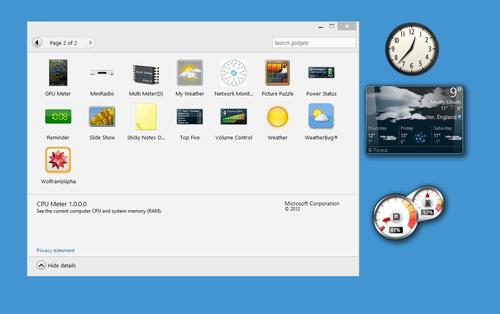
Gadgets are like mini widgets which offer information at a glance and provide easy access to frequently used tools. Microsoft introduced Gadgets for the first time in Windows Vista, however there was a big improvement in the usability and functionality of Gadgets in Windows 7.
Windows_8_desktop_gadgets_thumb

Unfortunately, Microsoft decided to remove the gadgets from their latest operating system i.e. Windows 8. This was a shocking news for all the users who loved gadgets and used them frequently.

NO+GADGETS
But here is some good news for them. We are here with a freeware which will help you to get your awesome gadgets back in Windows 8. 

The freeware is named Windows 8 Desktop Gadgets and comes from WinAero, who are one of the leading names in Windows Customization software's. 

Here's how to get back Gadgets in Windows 8:

(1) Once the app has been downloaded to your computer, extract the ZIP file to get the installer. 

(2) Then go ahead and run the installer named DesktopGadgets.N.

Run
(3) Here select your desired language and click OK. 

Lang

(4) Now click on Next and and let the installer complete installation.

gadgets_installer1

(5) Once the installation has completed, right click on the desktop and Voila you will see Gadgets option in the right click menu, just like Windows 7.

Right+click
Now you can add the gadgets the same way you were used to do in Windows 7. 
Read More

How To Upgrade From Winodws 8 to Winodows 8.1

Posted by Technology Cracks
windows 8.1 start screenAre you curious to try the refined version of Microsoft’s controversial Windows 8? Anyone using Windows 8 can now upgrade to a preview version of Windows 8.1 for free. This update refines Windows 8, giving keyboard and mouse users important interface improvements and making the Modern interface more powerful. Windows 8.1 is what Windows 8 should have been.
Note that you can’t downgrade back to Windows 8 without completely reinstalling your operating system from Windows 8 installation media or arecovery drive. Windows 8.1 is also not a final, stable version, so you may experience bugs and crashes. You shouldn’t install Windows 8.1 on your primary computer — it’s best confined to computers you can afford to experiment with and virtual machines.

How to Upgrade

You can download and install a Windows 8.1 Preview ISO file to upgrade straight to Windows 8.1 if you’re still on Windows 7. However, we’ll assume you want to upgrade an existing Windows 8 system to Windows 8.1.
First, open this web page on the Windows 8 system you want to upgrade. Click the Get the update button and run the small program. This program will make Windows 8.1 available from the Windows Store.

If you’re using an English language version of Windows 8, your system language must be set to US English. You can find a full list of supported languages on the Windows 8 preview page— be sure to set your system to any of the supported languages. If you’re using another regional variant, like UK English, this program won’t install. Windows 8.1 is also not yet available as an update for Windows 8 Enterprise, only the standard and Professional editions of Windows 8.
get-windows-8.1-update
After you run the updater, you’ll see an “Installation Complete” message that prompts you to restart your computer. Windows 8.1 isn’t actually installed yet. Just click the Restart Now button to restart your computer.
restart-after-installing-windows-8.1-update[4]
Log into your computer after it boots back up and you’ll see a “Get Windows 8.1 Preview for free” message on your Start screen. Click the Go to the Store button and you’ll be taken to the Windows Store, where you can download the Windows 8.1 update. When the final version of Windows 8.1 is released, all users will likely see a message like this one.
get-windows-8.1-preview-for-free-message
Click or tap the Download button as if you were downloading any Modern app from the Windows Store. Windows will download and install the Windows 8.1 update. It’s several gigabytes in size, so you’ll have to wait a while. After the download process is complete, Windows will install the Windows 8.1 update and reboot your system. The rest of the setup process will happen automatically.
Sign into Windows after the update process is complete and you’ll see a few screens asking you for settings, including a new screen that asks you whether you want to enable Windows 8.1′s new deep SkyDrive integration. SkyDrive isn’t separate from Windows 8′s sync featuresanymore — it’s integrated.
windows-8.1-skydrive-splash

What To Expect From Windows 8.1

Whether you’re upgrading now or waiting until the final version of Windows 8.1, there are big changes awaiting you. Microsoft has made many changes, from tweaks to the way the desktop works and a more comprehensive PC Settings app to changes to the Modern interface and a collection of updates to the many included Modern apps. We can’t possibly cover them all, but we’ll hit on some of the big ones.

Desktop Improvements

Windows 8 restores a Start button to the desktop, allows you to boot to the desktop, and allows you to disable the upper hot corners for the app switcher and charms bar. The new Start button just opens the Start screen, but you can set the Start screen to use your desktop background, making it less jarring. You can also set the All Apps view to automatically open at the Start screen and place your desktop apps first in the list, so you never even have to see the live tiles. The right-click power user menu now has Shut Down and Restart options, while universal search of your apps, settings, and files is now restored. If you really want a traditional Start menu, Start8 still works with Windows 8.1.
windows-8.1-navigation-options

Modern UI Improvements

The Snap feature is now much more useful, so you can snap two apps in 50/50 view and have them each take up half your screen. You can also Snap up to four apps at once on larger displays. The search interface has been revamped and now offers detailed Bing search results. Many of the included Modern apps have been updated and redesigned.
windows-8.1-snap

SkyDrive Integration

SkyDrive is more integrated into Windows 8, both in the PC Settings app where it’s now a Sync option and in the desktop, where it’s available in File Explorer. SkyDrive no longer syncs all your files to your PC, but gives you access to them and allows you to make certain files available offline — perfect for devices with small amounts of local storage assuming you have a lot of files in the SkyDrive cloud.
windows-blue-skydrive-in-file-explorer

Internet Explorer 11

Internet Explorer 11 is a big improvement, particularly in the Modern interface, where it can now open more than 10 tabs at once. IE 11 also offers tab sync across Windows 8.1 and Windows Phone. Websites pinned to your Start screen can function as live tiles. Under the hood, Internet Explorer 11 now offers support for WebGL and SPDY, allowing websites to use 3D graphics and faster connections. You can now open multiple copies of a Modern app, which is particularly useful for IE — you can have two web pages side-by-side in Modern IE, for example.

App Updates

The Windows Store and Xbox Music have seen the biggest updates and now have interfaces that are much better thought out than the half-baked ones introduced with Windows 8. Microsoft has also added Alarms, Calculator, Sound Recorder, Health & Fitness, and Food & Drink apps. The Messaging app will be replaced by Skype. There’s also a Help app included to help new users get to grips with Windows 8, although it isn’t working yet.
new-windows-store-app
Windows 8 also includes native support for 3D printers and Intel’s Miracast wireless display streaming — think of it like an open standard to rival Apple’s AirPlay. More feature will likely be rolled out soon, particularly to Microsoft’s Modern apps.
The final version of Windows 8.1 is scheduled for release in late 2013, but Microsoft hasn’t announced a concrete date yet.
Have you upgraded to Windows 8.1 yet? If you didn’t like Windows 8, are these changes enough to make you want to upgrade? Leave a comment and share your thoughts!
Read More