Showing posts with label android apps. Show all posts

How to Run android Applications On Windows

Posted by Technology Cracks
 Here i am with my next post on how to run and download android apps for windows and mac.Now a days most of them have been using Android mobiles and are fascinated towards the various apps provided by android os and looking forward to get them on their pc's , But are confused and stuck that how to get them on pc, So here we give some softwares and tips which have made downloading and running of android apps on pc easy.In present days Bluestacks is one of the famous and working Software Which converts any android apps and runs on every pc with Windows or mac version.
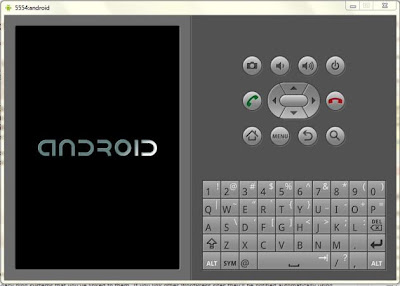
                 Every person who use internet on smartphone always use Android  Market to find number of different application based on their required and needs. Some People use android market for their business purpose or some peoples just for download funny and interesting applications including games. Android markets have millions of different applications based on number of different categories. If you are really fond of using android applications but unfortunately you don't have any android supported Phone. Then don't worry this article will helps you make your dreams come true.Here you only need a android emulator to run all android apps on pc.

Android-pc

So here are the 3 steps which you have to do initially:

apps-on-pc

  • First you have to download android apps which you want to run on your PC or computer.
  • Then you need to download an Android Emulator which will run android apps on PC.
  • Then you need to install android apps on pc and run it using the emulator.

    What is an Android Emulator ?? 

    The emulator is part of the Android SDK and is a tool used to create and test AVD (Android Virtual Devices) on a computer, the AVDs behave very roughly in the same way that an actual device would, so one of the most common uses of the Android Emulator by power users is to test a device before buying it, either to learn how to use it or to check its features.
                     
                          There are quite few android emulators available on Internet but the most widely used Android Emulator is " Bluestacks ".

    Steps to Download and Install BlueStacks :

    bluestacks
    • Go to Bluestacks Official site and choose your operating system either Windows or Mac and download the software.
     You can download it here BlueStacks
    •  After downloading the software you have nothing to do but just install it which is an easy task.
    • After installing the software now you can download all android apps and games then use it on your pc with Bluestacks.
     Note : If you are getting an error like "The application failed to initialize properly (0xc0000135) .Then Click on ok and terminate the application.This error would occur because .NET framework is missing on your PC.

    What does . NET really mean ??? 

    .net

    Microsoft .NET is a must program or software for every PC as almost all the new applications in windows run using .NET framework.The Microsoft .NET Framework 4.5 is useful for all programmers and developers.Previously Microsoft used to provide only online installers which requires Internet connection for installing the whole package.But with the current version of 4.5 they are providing both online installer and offline installer as well.

    Microsoft .Net Framework 4.5 Requirement :

    • Operating.System : Windows Vista SP2, Windows 7, Windows Server 2008 R2 SP1 (x64)and Windows Server 2008 SP2 (x86 and x64).
    • Hardware Requirements : 512 MB RAM, 850 MB available space for (X86) and 2 GB space for (X64) versions.

    These are the download links for .NET :

    Sync your android apps to pc using Bluestack Cloud connect:

    Cloud-connect


    • Open the BLUESTACKS application and Click on the settings button at the right top.
    • Choose the first option "cloud connect".
    • A box opens select "yes" and click on next. 
    • Enter your email address , Mobile number and click on "Register".
    • Now you will receive a email with a Pin number.
    • Now take your android mobile and Go to market or paly store and search for "Bluestacks", Download and install the application.
    • Open the application and enter the pin number that you have received.
    • There ends the task now you can Sync any application on your mobile with your PC.
    • Note : You can watch a quick demo of how to install android games and apps on PC using Blue stacks
     Watch Here : Demo of downloading apps and games using BlueStacks

    For Example im showing downloading of WhatsApp on BlueStacks:

    WhatsApp :

    Whatsapp

    WhatsApp Messenger is a smartphone messenger available for Android and other smartphones. WhatsApp uses your 3G or WiFi (when available) to message with friends and family. Switch from SMS to WhatsApp to send and receive messages, pictures, audio notes, and video messages.Once you and your friends download the application, you can use it to chat as much as you want. Send a million messages a day to your friends for free! WhatsApp uses your Internet connection:3G/EDGE or Wi-Fi when available.You can enjoy group conversations with your contacts.

    Steps to download WhatsApp to pc :

    • Now open the BlueStacks application you can find the screen capture just like the screen shown below.
    Bluestacks
    • Now Click on Search option and search for Whatsapp.
    Bluestacks-search
    • Now choose the whatsapp messenger form the market.
    Whatsapp
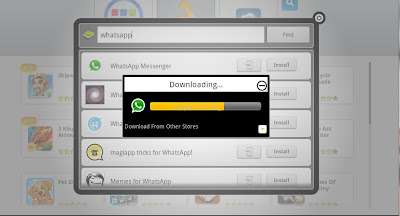
    • Just click and Download whatsapp after selecting from any app store.
    download
    • You can find downloaded app in your My Apps.
    downloaded-apps-bluestacks
    • Now click on WhatsApp open it and fill the details and start using it.
    • If you want to uninstall any app just hold the app and click cross button.

    Other Links :

    I have used Bluestacks i din't find Blustacks that efficient and useful and also found some disadvantages like our system getting slower due to the bulkness of the software , disconnecting of internet connection and disappearing of some computer data.So i suggest you to move to other android emulators.

    SDK-manager
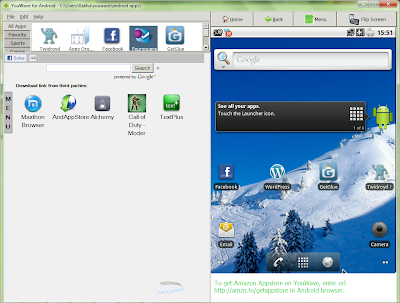
    • You can also try Youwave and crack the other best emulator.
    Youwave

    So i hope this script had helped you to an extent.Happy gaming in your pc.If you know some other emulators best than them let us know.
    Read More

    How to fix Bluestacks Graphic card Error 2500

    Posted by Technology Cracks
     
    Bluestacks is one of the best emulator to play/run android apps and games. But in some PC's this emulator is showing error while installing especially in Windows 8 Operating system.

    Error 25000. Bluestacks currently doesn't recognize your graphic card. It is possible your graphics drivers may need to be updated. Please update them and try install again.

    Also read : Easiest Way to update Motherboard drivers

    fix+bluestacks+25000+graphics+card

    Fix Bluestacks 25000 Graphics Card Error


    Method 1

    • DriverMax is best software to update your system drivers
    • Download DriverMax and it will automatically detect outdated drivers.
    • Before going to update you need ton DriverMax website. 
    • Update or Download new Graphics card driver and install it.
    • After installation, Open Bluestacks setup now it will install without any error
    Download         

    Method 2
    • Here below we have given links which will test your drivers and shows outdated drivers information.
                       Intel Chipset users Check here
                       AMD drivers users Check here
                       NVIDIA  users Check here
    • After opening link, it will automatically detect your system for drivers scan.
    • It will show a list new drivers or corrupted drivers of your PC.
    • Now you can update/download (Especially Graphics card)
    • After installation of graphics card, you can able to install Bluestacks.                            

    Conclusion
    I have tried to update with other drivers updater software such as Slim drivers, Pc pitstop but they didnt work for me, If any problem persists while updating graphics card contact me on Facebook

    Read More

    Is MX Player The Best Do-It-All Movie Player For Android? [Android 2.1+]

    Posted by Technology Cracks
    That seems to be the overwhelming opinion of our readers whose recommendations placed the MX Player on our Best Android Apps page. But will you be one of the satisfied users of this do-it-all movie player for Android? That’s the purpose of this brief review. So, download and install the favorite and test it out with your favorite movie even as you scroll down to the end of this review.
    MX Player goes up against quite a few challengers like MoboPlayer, DoubleTwist, and then a few others like VPlayer, RealPlayer, and Meridian etc. It remains standing, and if download figures are anything to go by even wins the bout. When you go to the Google Play Store to install the app, you will see that nearly 230,000+ people have downloaded the free version of the media player. There has to be something good about it, right?

    The Do It All Movie Player

    movie player for android
    MX Player comes packaged with all the popular codecs and video formats you can think of for instance – 3gp, avi, divx, f4v, flv, mkv, mp4, mpeg, mov, vob, wmv, webm, xvid, and many more. You can select extensions and the decoders for them manually too.
    android movie player
    MX Player can scan your SD card in seconds and list only those folders and sub-folders that contain movie files. You can also specify the folder manually. A nice little touch is that movies which have been freshly copied can be made to display a NEW tag. Movie folders can also be grouped, though there is no playlist creation feature. You will also notice that the thumbnail preview displays the name of the last watched movie and finished movies in different color. By default an Edit menu feature is present which allows you to rename a video file.
    android movie player

    Playing Your Movies

    Start movie playback by tapping on the preview thumbnail of a movie. The user interface is very clean cut without any extra frills getting in the way. All the frills are hidden below the interface. The main features of the video playback are –
    1. Along with the usual controls, MX Player also supports touch gestures. For instance, you can pinch to zoom and drag vertically on left half of the screen among other gestures. Play and pause can be toggles with a single tap. It also supports keyboard shortcuts.
    android movie player
    2. You can also click on Display – Settings and go into the controls for all aspects of your viewing experience. See the screenshot for an idea.
    android movie player app
    3. A single button sequentially sets the video zoom levels ranging from Fit to Screen to Stretch. You can lock your selection and enjoy an uninterrupted movie.
    android movie player app
    4. MX Player comes with full subtitle support. You can sync subtitles with gesture movements. You can also control how the subtitle appears on the screen.
    android movie player app
    5. There’s a nice Background play feature that ensures that the video file plays in the background while you work on other apps. An audio option can be used for just the audio playback.
    6. MX Video Player remembers resume position for all video files and gives you a choice of starting over or resuming from the last position.

    Performance

    The feature that’s most often cited about MX Player is its support for multi-core decoding. That is to say in simple words, the media player takes the full support of multiple processors to render the movie. That results in smoother playback and decoding of the codecs used in the movie file. MX Players says that according to test results on dual-core devices, it showed up to 70% performance improvement over single-core decoding. So, if you have a phone like the Samsung Galaxy S2 or Samsung Galaxy Note, you should be able to verify those claims.

    Switch Decoding Modes between Software and Hardware

    movie player for android
    You can quickly toggle between software and hardware decoding modes with a tap on the button as shown in the screenshot. By default, hardware decoding is used as it is better in the way it uses full processor optimization to process the video while software decoding depends on the app which in the case of a mobile app might be weak.

    End Credits…

    I threw quite a few videos of different formats at MX Player and it handled them seamlessly. Video playback wasn’t a problem at all. What I like about MX Player is that I can use it immediately after install without bothering too much about file formats. It has a few nice touches that give me extra control over the way I switch on with my Android. For instance, gesture support and the ability to control subtitles are invaluable for a smoother experience.
    MX Player has an ad-supported free version which in my opinion is adequate for the job. MX Player works with Android 2.1 and above. It also is supported on Android 4.1 Jelly Bean. Does MX Player have the oomph to be the default media player on your Android? If not, which video player is your first pick? Let’s argue in the comments.

    Read More