Showing posts with label blogging tips. Show all posts

How New HTML Editor Works

Posted by Technology Cracks

If you're using a blogger blog, then you should notice some major changes in its HTML editor. Google made those changes couple of months ago. You will see the code is colored, folded and very much structured. You will also notice some new buttons which were not available earlier. What are the uses and benefits of these buttons? Read more to know . . .I said -WordPress is matured, but there is a continuous improvement on Blogger. And the new HTML template editor of blogger is a part of that improvement! Today I will discuss about how to work with the new html editor. 


I was very much angry after such a change in the template editor. Because several times I was puzzled by the new options and interface. But as soon as I got familiar with the new editor, I really like it. If you're familiar with all the new options I think you will also like it. 


Okay let's start. Sign in to your blogger. Go to the design or dashboard. Then hit on the Template tab from the left pane. Now click on Edit HTML button. Your template will be appeared as the image below:   
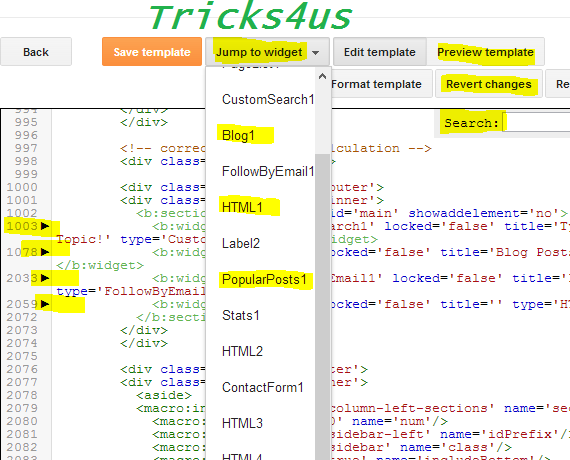


Now closely look at the above image. This is the new look of the HTML Template Editor. I am gonna talk about each part of the new editor: 

  • Line Number: Each line of the template are numbered. When editing the template, if you made any error then error message will be shown as - error on ### line. Thus you will know exactly where you made mistake. 
  • Folded Code: You may face problem due to the folded code. In the above image, look at the line number 1078. After 1078 there is line number 2033! More than thousand lines are hidden. Clicking on the folder marker ' ' you can show those hidden lines. 
  • Jump to Widget: This button is really helpful for navigating through the template. If you click on the down arrow, you will see the parts of your template. You can go to any part by a single click. For example- Blog 1, HTML 1, HTML 2 etc. 
  • Format Template: Don't be confused. It will not delete your template! When you format your flash drive then all data are erased. But here format means formatting the template. If you hit on the Format button, the indentation of your template will be corrected automatically. 
  • Revert Changes: If you hit on this button, the unsaved changes will be removed automatically. Suppose you made some random changes in your template. But before saving it, you can't remember whether everything is correct or not, in that case you can hit this button to cancel the changes you made. 
  • Search Box: As more than thousand lines of your template are folded, you can't find your desired part of the code by using the browser's search box. That's the new editor gives you a new search box. To activate the search box you have to click on any part of the editor. Then Press Ctrl + F to enable search. PressShift + Ctrl + F to find and replace. Press Shift + Ctrl + R to replace all. 

Old options are also available along with these new buttons. You can preview your template by hitting on Preview Template button before saving it. Or if you would like to back to the default settings of the widget then click on the Revert Widget Templates to Defaultbutton. 


Keep visiting Tricks4us And Subscribe 

Read More

How to Add Attractive three column Sitemap Widget To Blog

Posted by Technology Cracks
 Today we're going to see how to add an stylish three column blogger sitemap with responsive design. This widget is easy to add and it has a cool look when compared to other sitemap widgets.
OK, you can see a live demo of the widget for better understanding. 
Live Demo:-

How To Add Sitemap Widget To Your Blog

  1. In the blogger Dashboard, Select your blog
  2. Go to Pages >> New Page, then choose HTML Part
  3. Paste the following code inside it.
    <script src="https://dl.dropboxusercontent.com/u/36169749/scripts/widgets/btnt-sitemap.js" type='text/javascript'></script>
    <script src="http://www.crack4us.blogspot.com/feeds/posts/default?max-results=9999&amp;alt=json-in-script&amp;callback=loadtoc"></script>
    <style type="text/css">
    .post-archive { width: 100%; padding: 20px 0; text-transform: capitalize; }
    .post-archive h4 { border-bottom: 2px solid #EEEEEE; color: #333333; font-size: 20px; margin: 0 0 10px 2px; padding: 0 0 10px; }
    .ct-columns-3 { -moz-column-count: 3; -moz-column-gap: 10px; -moz-column-rule: none; -webkit-column-count: 3; -webkit-column-gap: 10px; -webkit-column-rule: none; column-count: 3; column-gap: 10px; column-rule: none;}
    .ct-columns-3 p { padding: 5px 0px; -moz-column-break-inside: avoid; -webkit-column-break-inside: avoid; -o-column-break-inside: avoid; -ms-column-break-inside: avoid; column-break-inside: avoid; display: inline-block; width: 100%; }
    .ct-columns-3 p a { background: #fafafa; color: #333; display: block; border: 1px solid #FFFFFF; font-size: 14px; line-height: normal; outline: 1px solid #EEEEEE; padding: 10px 15px; -webkit-transition:all .25s ease-in-out; -moz-transition:all .25s ease-in-out; -o-transition:all .25s ease-in-out; transition:all .25s ease-in-out; }
    .ct-columns-3 p a:hover { background: #555; color: #fff; }
    @media screen and (max-width: 768px){ .ct-columns-3 { -moz-column-count: 1; -moz-column-gap: 0px; -moz-column-rule: none; -webkit-column-count: 1; -webkit-column-gap: 0px; -webkit-column-rule: none; column-count: 1; column-gap: 0px; column-rule: none; } }
    </style>
    • After Adding the above code. Replace http://www.crack4us.blogspot.com with your blog link
  4. Then Click on the options on the right sidebar and select Don't allow, hide existing for Reader comments
  5. Now, Click publish and See the page.
  6. That's all, We are done.

I Hope you all like this widget Kindly Let me know your thoughts about the widget and don't forget to share it...

Happy Blogging :)
Read More

How to insert a link in the blogger comments

Posted by Technology Cracks

Commenting on other blogs is one of the best ways to draw new visitors to your blog.Moreover inserting a link in comments after finishing comment can draw more visitors.I see many visitors commenting on my blog and leaving their url directly instead of inserting a hyperlink.
Actions-insert-link-icon

Such comments will automatically move to spam and moreover they look like self promotion.I also do comment on my favourite blogs and insert a link in comments.

How to insert link in Blogger Comments while commenting:

1.First write the comment which you want to then insert the below code as shown below to leave  a link.
<a href="Add your link Here">@Your Keyword Here</a>
2.Check the below screen shot.
blog+commenting+and+insering+a+link

3.Once you comment click on Preview to confirm whether you have inserted the link properly or not.
comment+preview
4.Well once the preview looks fine then everything is set ready ,you can publish your comment.
In this way you can also insert any number of link in your comment and anywhere between the comment.But make sure that you don't spam too much .No one will accept your comment if it is self promotion.Its always recommended to comment with a relevant comment and then leave your signature at the end.
Read More
